7 min read
How to Publish Your omg.dev Android App on Google Play
Built an Android app on omg.dev? Get the APK, test it on real phones, and set up Google Play Console: listing, privacy, data safety and the 12-tester test.
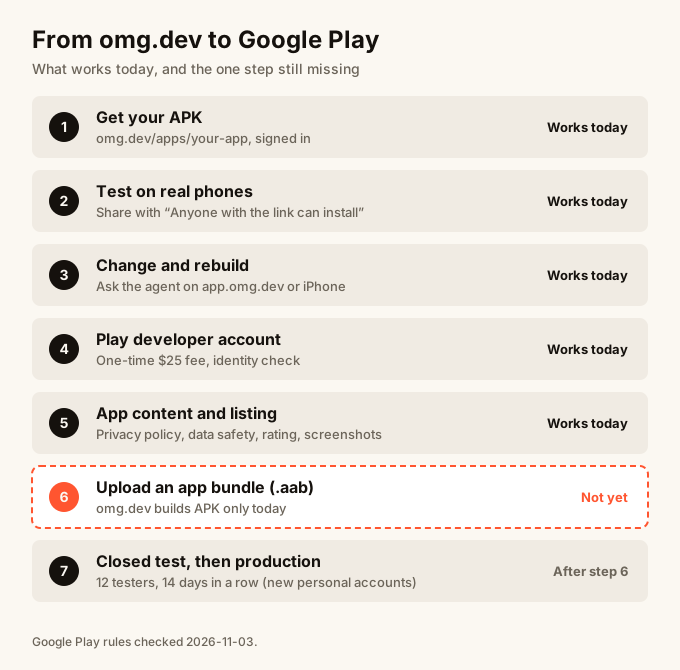
TL;DR
omg.dev builds your Android app as a signed APK file. You can install it on your own phone and share it with testers today. Google Play needs a different file for new apps: an Android App Bundle (.aab). omg.dev does not make that file yet, so you cannot upload your omg.dev build to Play right now. You can set up the Play side now: your account, store listing, privacy policy, content rating and data safety form. The upload and Google's 12-tester closed test come after omg.dev can build the bundle.
You built an Android app on omg.dev. You got the "Your app is ready" email, and the app runs on your phone. Now you want it on Google Play, where anyone can find it.
This guide covers the full path, in order. Some steps take minutes. One of them takes two weeks, so start that one early.
What you have, and what Google Play wants
| What omg.dev gives you | What Google Play wants for a new app | |
|---|---|---|
| File | A signed APK (.apk) |
An Android App Bundle (.aab) |
| Use | Install directly on Android phones | Upload to Play Console. Google makes the install files. |
| Signing | Signed with a key omg.dev made for your app | Signed with an upload key. Google signs the final app. |
| Version number | Goes up by one with every build | Must go up with every upload |
An APK is the file a phone installs. An app bundle is a package you give to Google, and Google then makes the right APK for each phone. Google Play has required app bundles for new apps since August 2021.
Step 1: Get your APK
Your app has one page on omg.dev: omg.dev/apps/<your-app>. Every install link points there.
- Signed in as the owner: you always see your latest Android build. On an Android phone, tap Install. On a computer, click Download and the APK goes to your Downloads folder.
- From the email: the button in "Your app is ready" opens the same page with a private install link. That link works for 7 days, with no sign-in.
- From the dashboard: when the agent finishes a build, a card shows a QR code. Scan it with an Android phone. That code works for 30 minutes.
- From your app's settings: open your app on app.omg.dev, go to Settings, and tap Open store page under Store page.
If the page says "This app page is not available", you are signed out. Sign in with the account that built the app and open the link again.
Step 2: Test it on real phones
Install the APK on every Android phone you can find. Android warns about any app installed from a link. That warning is normal.
- Open it in Chrome. Installs do not work in the Instagram or Facebook browser.
- If Android asks, allow Chrome to install unknown apps.
- Updates install over the old version and keep your data.
To share the app with friends, open Store settings on your app's page and turn on Anyone with the link can install. It turns on by itself with your first Android build, unless you changed it. Only your team can see this setting.
Step 3: Make changes and rebuild
You change your app the same way you built it: by asking the agent.
- On a computer, open app.omg.dev and go back to the chat where you built the app.
- On an iPhone, use the omg.dev app.
Ask for the change, then ask for a new Android build. Each build gets a higher version number automatically, which is exactly what Google Play wants for updates. The version name (like 1.0.0) comes from your app's settings file. Ask the agent to change it when you want a new name.
Step 4: Set up your Google Play developer account
If you already paid the $25 fee, you have this part. If not:
- Go to Play Console and sign in with a Google account.
- Choose personal or organization. An organization account needs a D-U-N-S number (a free business ID), which can take up to 28 days.
- Pay the one-time $25 fee and verify your identity.
Personal or organization? A personal account created after November 13, 2023 must run a 12-tester closed test before going live (Step 7). An organization account skips that test.
Step 5: Create your app and fill in the App content forms
In Play Console, tap Create app. Enter the app name and default language, and say whether it is free or paid. Then work through the setup list on the Dashboard.
The App content forms are required:
- Privacy policy. Every app needs one, even an app that collects nothing. Ask the agent to add a
/privacypage to your app's website and use that link. - Ads. Say yes or no.
- App access. If your app has sign-in, give Google a test account so a reviewer can get in.
- Target audience. Pick the age groups your app is for.
- Content rating. A short questionnaire. Unrated apps can be removed.
- Data safety. Say what data the app collects and why. If your app has sign-in, it collects email addresses. Say so.
Then fill in the store listing:
- A short description, up to 80 characters.
- An app icon: 512 × 512 PNG, up to 1 MB.
- A feature graphic: 1024 × 500.
- At least 2 screenshots. Google recommends 4 or more, at 1080 pixels or wider.
Ask the agent for screenshots of your app on a phone screen. omg.dev already saves screenshots of your live app for its own app page.
Step 6: Upload the app bundle
This is the step that does not work yet. Play Console asks for an .aab file, and omg.dev builds APK files only. An APK upload for a new app is refused.
What you can do today:
- Finish Steps 4 and 5, so your listing is ready.
- Keep testing the APK with your friends through your omg.dev app page.
- Reply to your "Your app is ready" email to tell us you want to publish on Google Play. We will help you with this step.
About your signing key
Every Android app is signed with a key, so phones know updates come from the same person. omg.dev makes one key for each of your apps and keeps it encrypted.
Google Play has its own system, Play App Signing. For a new app, Google makes the final signing key by default. You sign uploads with a separate "upload key".
This matters for people who already installed your APK. A phone only accepts an update signed with the same key. If Play signs your app with a new key, those people must uninstall the APK and install from Play. Play Console has a Change key option to use your own key instead, before your first open or production release.
If you want Google Play to keep using your omg.dev key, reply to your "Your app is ready" email before your first Play release and we will help you set it up.
Step 7: Run the closed test with 12 testers
If your personal account was created after November 13, 2023, Google needs proof that real people used your app first.
- In Play Console, open Test and release, then Closed testing, and create a track.
- Add at least 12 testers by email (a Google Group works too).
- Send them the opt-in link. Each tester joins and installs the app from Play.
- Keep all 12 opted in for 14 days in a row. A tester who leaves and rejoins starts their count again.
- On the Dashboard, tap Apply for production and answer the questions about your test.
Google says the review usually takes 7 days or less. The test needs an uploaded build, so it starts after Step 6.
Then you create a production release, and your app goes live on Google Play.
What to do when things go wrong
"This app page is not available." You are signed out, or signed in with a different account. Sign in as the owner and open the link again.
The install link expired. Open omg.dev/apps/<your-app> while signed in. The page makes a fresh download link every time you tap.
The phone refuses to install. Open the page in Chrome, not inside Instagram or Facebook. Allow Chrome to install unknown apps when Android asks.
Play Console rejects the APK. That is expected for a new app. Google needs an .aab. See Step 6.
"Production" is greyed out in Play Console. Your closed test is not done. You need 12 testers opted in for 14 days in a row, then Apply for production.
Frequently asked questions
Where can I download the APK of my omg.dev app?
Sign in to omg.dev and open `omg.dev/apps/` followed by the name in your app's link. Tap Install on an Android phone, or Download on a computer. The link in your "Your app is ready" email also works for 7 days. You can also open the page from your app's Settings, under Store page.
Can I upload the omg.dev APK to Google Play?
No. Google Play has required new apps to upload an Android App Bundle (an .aab file) since August 2021. omg.dev builds an APK today. The APK is for installing on phones and for testing.
How much does it cost to publish an app on Google Play?
Google charges a one-time $25 registration fee for a Play Console developer account. There is no yearly fee.
Why does Google make me test with 12 people first?
Personal developer accounts created after November 13, 2023 must run a closed test with at least 12 testers, opted in for 14 days in a row, before they can apply for production. Organization accounts do not have this rule.
Do I need a privacy policy if my app collects no data?
Yes. Google requires a privacy policy link for every app, and you need one to finish the Data safety form. A page on your app's own website is fine.
How do I change my app after it is on Google Play?
Ask the agent for the change in the same omg.dev chat, on app.omg.dev or in the omg.dev iPhone app. It makes a new build with a higher version number. Then upload the new build to Play Console as a new release.